

Documentation Index
Fetch the complete documentation index at: https://domoinc-arun-raj-connectors-domo-480626-update-new-field-mi.mintlify.app/llms.txt
Use this file to discover all available pages before exploring further.
Intro
This article explains how to create a Microsoft Azure app, configure the Microsoft SharePoint Online Single Tenant Writeback connector, and push data from a Domo DataSet to SharePoint. Microsoft SharePoint Online enables organizations to create and manage custom team-focused and project-focused sites for collaboration. To learn more about the SharePoint API, see the Microsoft SharePoint API documentation. You configure your Domo-SharePoint connection in the Data Center. This article discusses the fields and menus that are specific to the SharePoint Online Single Tenant Writeback connector. General information for adding DataSets, setting update schedules, and editing DataSet information is discussed in Adding a DataSet Using a Data Connector.Required Grants
The grants required to use this connector depend on your role configuration. Contact your Domo account team for guidance.Prerequisites
To configure this connector, you must have the following:- An installed Microsoft Azure app. See Create an Azure App below.
- Your Domo Client ID and Client Secret. Learn how to get your Domo Client ID and Secret.
- Your tenant domain name.
- The SharePoint Client ID and Client Secret associated with your Microsoft Azure app.
- SharePoint Client ID — in the Azure portal, go to Azure Active Directory > App registrations, select your web app, and copy the Application ID.
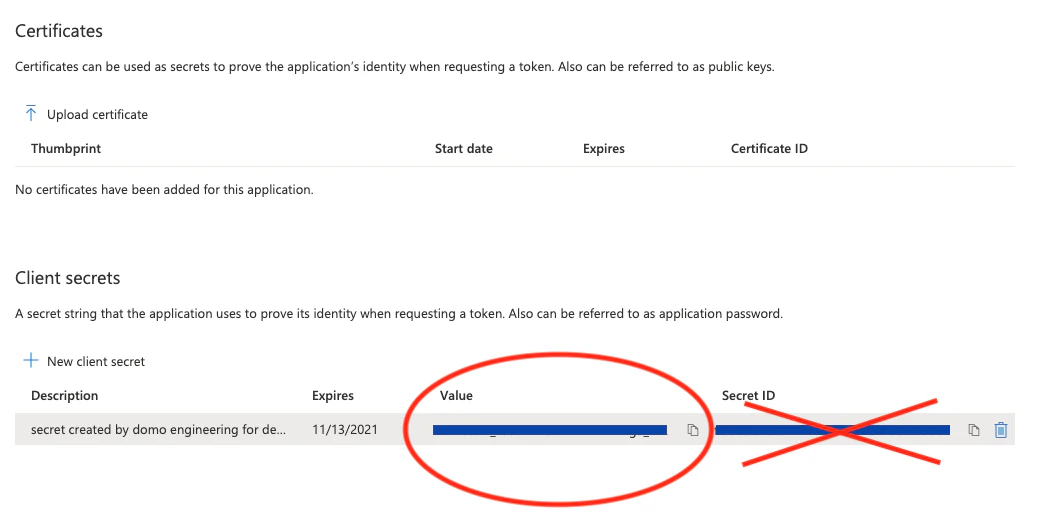
- SharePoint Client Secret — in the Azure portal, go to Azure Active Directory > App registrations, select your web app, open Certificates and secrets, select + New client secret, enter a description and expiry period, and select Add. Copy the resulting Value before leaving the page.
Create an Azure App
Before you can configure the connector in Domo, you must register an Azure app to obtain the credentials the connector uses to authenticate.- Log in to the Azure portal.
-
Select App registrations.
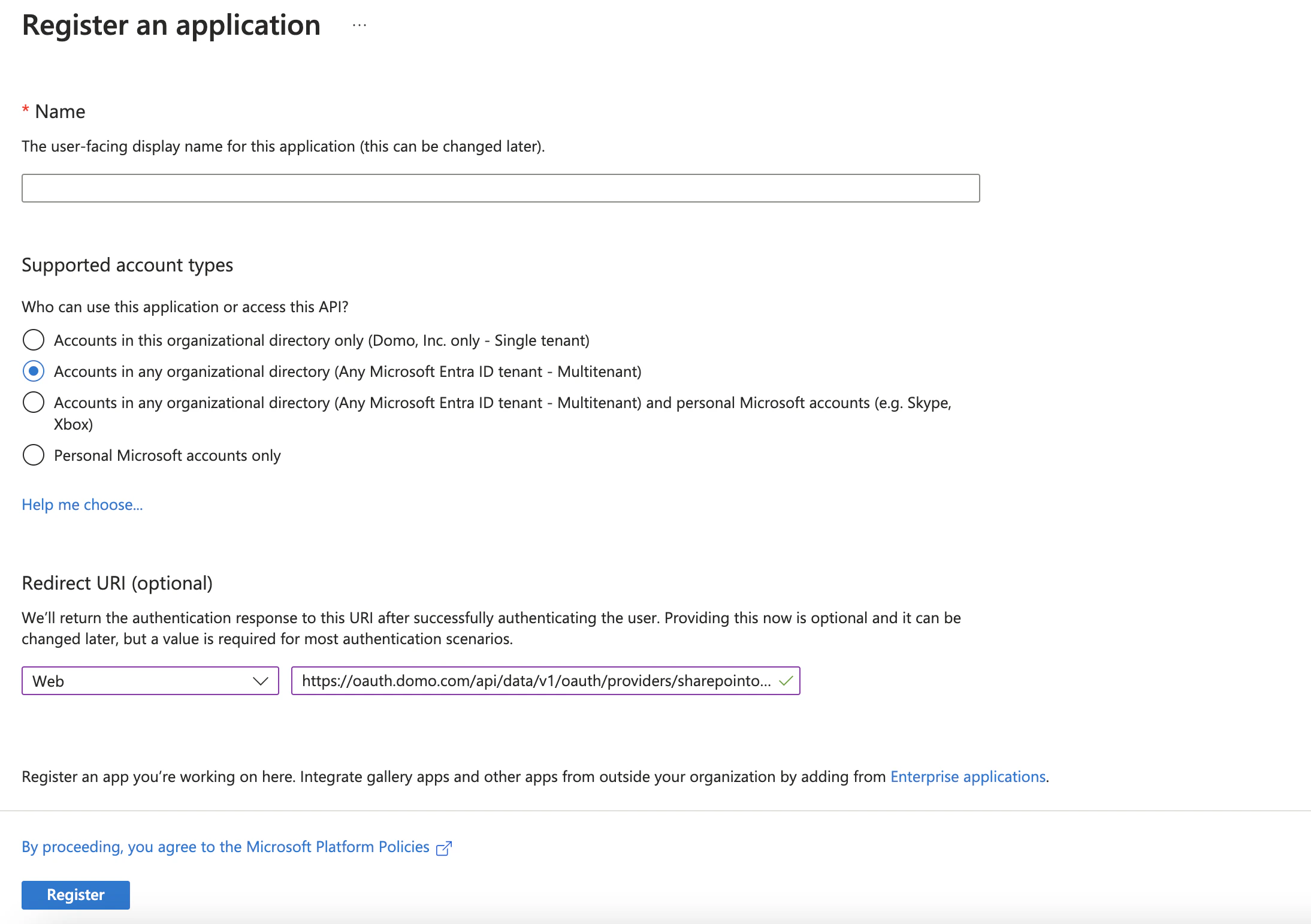
- Select New registration.
-
Enter the application name and select the supported account type. For Redirect URI, select Web and enter
https://oauth.domo.com/api/data/v1/oauth/providers/sharepointonlinewriteback-singletenant/exchange. - Select Register. The Application ID that appears is the SharePoint Client ID you enter in the Credentials pane in Domo.
- After the application is registered, assign the required API permissions. Select API Permissions.
-
Select + Add permissions and select the permissions as required.
After you add the permissions, the configured permissions display.
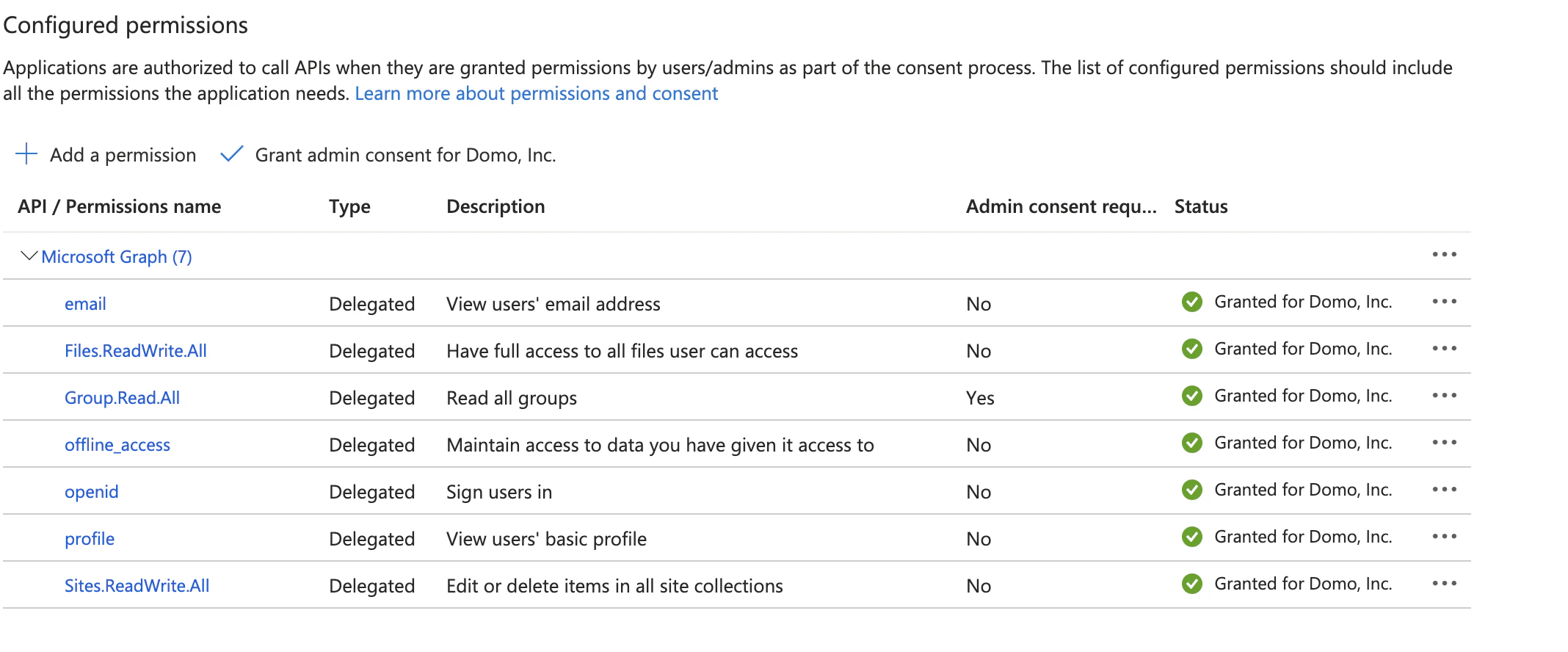
- Under Manage, select Certificates & Secrets. Certificates can be used as secrets to prove the application’s identity when requesting a token, and may also be referred to as public keys.
- Select + New client secret.
-
Enter a value in Description, select a suitable option for Expires, and select Add.
Configure the Connection
This section describes the options in the Credentials and Details panes on the Microsoft SharePoint Online Single Tenant Writeback page. The components of the other panes on this page — Scheduling and Name & Describe Your DataSet — are universal across most connector types and are discussed in Adding a DataSet Using a Data Connector.Credentials Pane
This pane contains fields for entering credentials to connect to your SharePoint Online account. The following table describes what is needed for each field:| Field | Description |
|---|---|
| SharePoint Client ID | Enter your SharePoint Client ID. |
| SharePoint Client Secret | Enter your SharePoint Client Secret. |
| Tenant | Enter your tenant domain name. |
| Domo Client ID | Enter your Domo Client ID. |
| Domo Client Secret | Enter your Domo Client Secret. |
Details Pane
This pane contains options for configuring your connection.| Menu | Description |
|---|---|
| Input DataSet ID | Enter the DataSet ID (GUID) for the DataSet you want to copy to SharePoint Online. You can find the ID by opening the Details view for the DataSet in the Data Center and looking at the portion of the URL following datasources/. For example, in the URL https://mycompany.domo.com/datasources/845305d8-da3d-4107-a9d6-13ef3f86d4a4/details/overview, the DataSet ID is 845305d8-da3d-4107-a9d6-13ef3f86d4a4. |
| Select Filename | Select how you want to choose the file where data is copied: Use Input DataSet GUID — the filename is the value you entered for Input DataSet ID. Use Input DataSet Name — the filename matches the name of the input DataSet. Enter File Name — you provide a custom name in the File Name field. |
| Filename | Enter the desired output filename. |
| How would you like to select the Site? | Choose the appropriate method to select a site. |
| Sites Discovery | Select the site that you want to use. |
| Site Search Query | Enter the search query to obtain the sites. |
| Site Search Query Discovery | Select the site that you want to use. |
| Select how would you like to choose the folder to store the file? | Select how you want to choose the folder to store the file. |
| Where to store the file? | Select the SharePoint folder in which you want to store the DataSet data. Select Root if you want the file to be stored at the root level of the selected site. |
| Folder Path | Enter the folder path separated by the delimiter / where you want to store the file. For example: testFolder/TestNestedFolder. Note: The folder path is case-sensitive. |
| Select Mode | Select what happens when a file with the same name is discovered, either Rename or Replace. If you choose Rename and the filename already exists, the file is renamed by appending a number, such as filename 1, filename 2, and so on. |
| Include BOM Characters | Select this checkbox to include BOM characters so the file opens correctly in Excel. |