

Documentation Index
Fetch the complete documentation index at: https://domoinc-arun-raj-connectors-domo-480626-update-new-field-mi.mintlify.app/llms.txt
Use this file to discover all available pages before exploring further.
Intro
ServiceNow is a software platform that supports IT service management and automates common business practices. You can combine your ServiceNow data with data from other systems in Domo to see the end-to-end customer experience and fix any issues faster. Get a quick, interactive view of all your data, fully integrated, to help you spend less time gathering data and make faster, better business decisions. You can connect to your ServiceNow Enterprise OAuth Configuration account in the Data Center. This topic discusses the fields and menus that are specific to the ServiceNow Enterprise OAuth Configuration connector user interface. To add DataSets, set update schedules, and edit DataSet information, see Adding a DataSet Using a Connector.Prerequisites
To connect to your ServiceNow Enterprise OAuth Configuration account and create a DataSet, you need the following:- OAuth Configuration
- Instance Name
How to Create OAuth Configuration in the Domo instance
To create an OAuth configuration:- Log into the customer’s Domo instance.
- Navigate to
https://{customerdomain}.domo.com/datacenter/accounts. - Add New OAuth Configuration.
- Select the ServiceNow****OAuth Config Configuration Type from the drop-down list.
- Enter the client id and secret generated through an incoming link, described below.


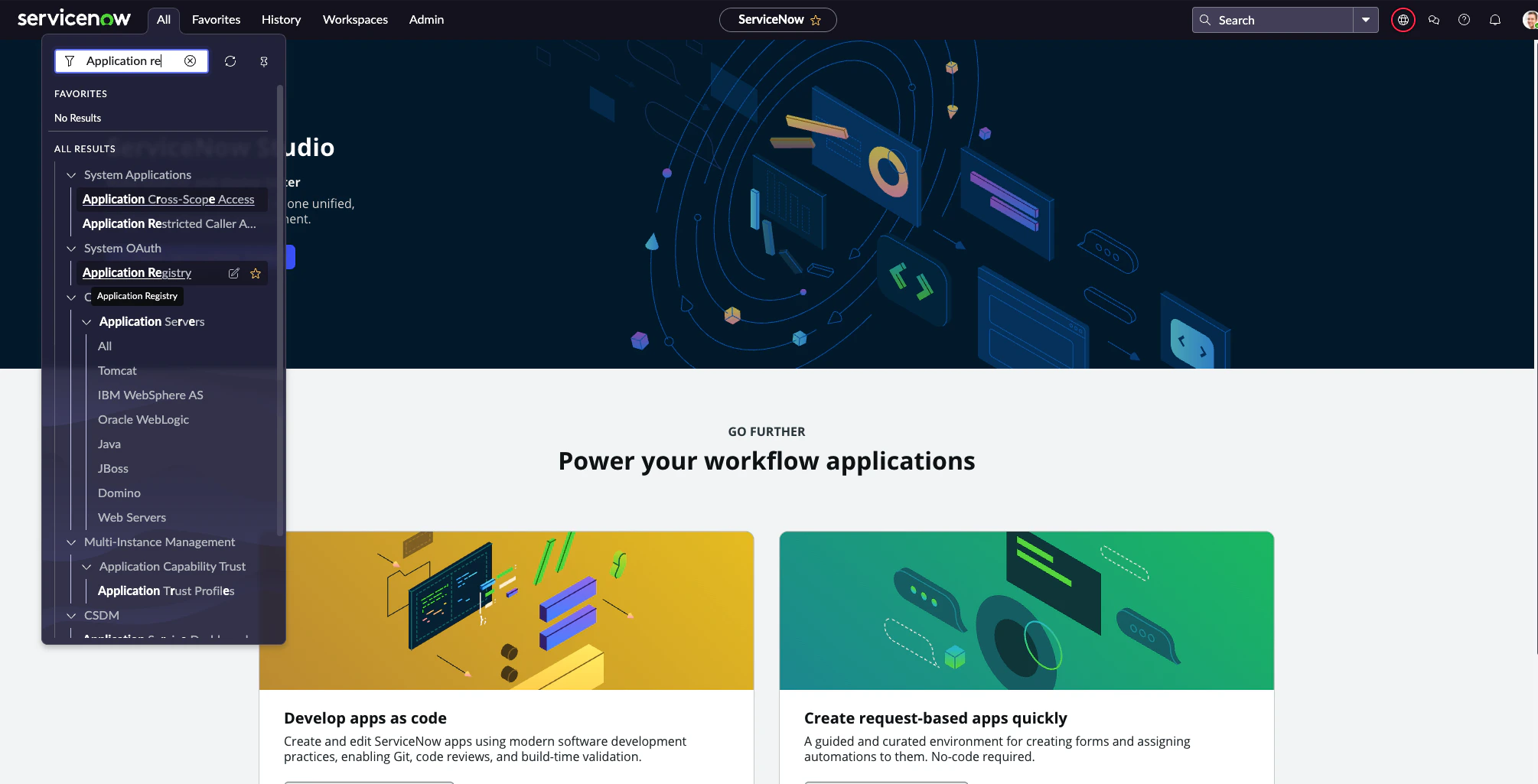
- In the left All Navigator, enter System OAuth in the search bar.
-
Select Application Registry. To navigate, select System OAuth > Application Registry.
-
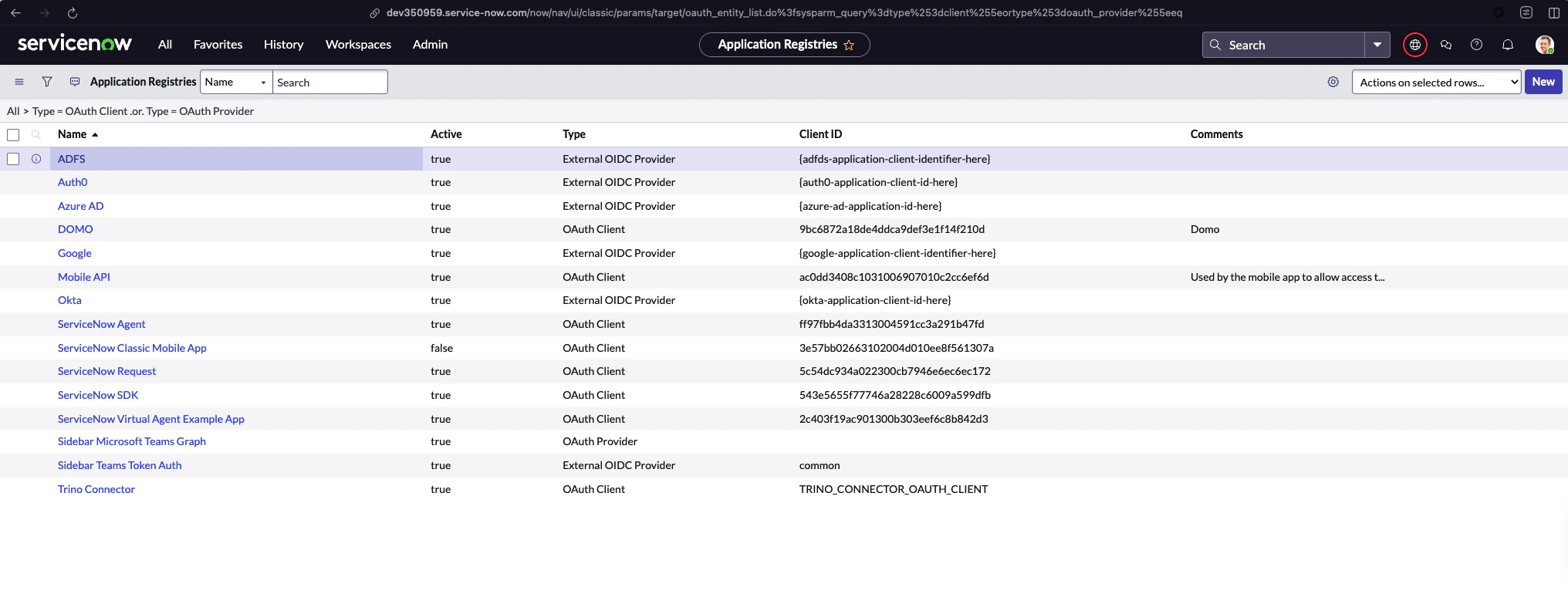
Create a New OAuth application.
-
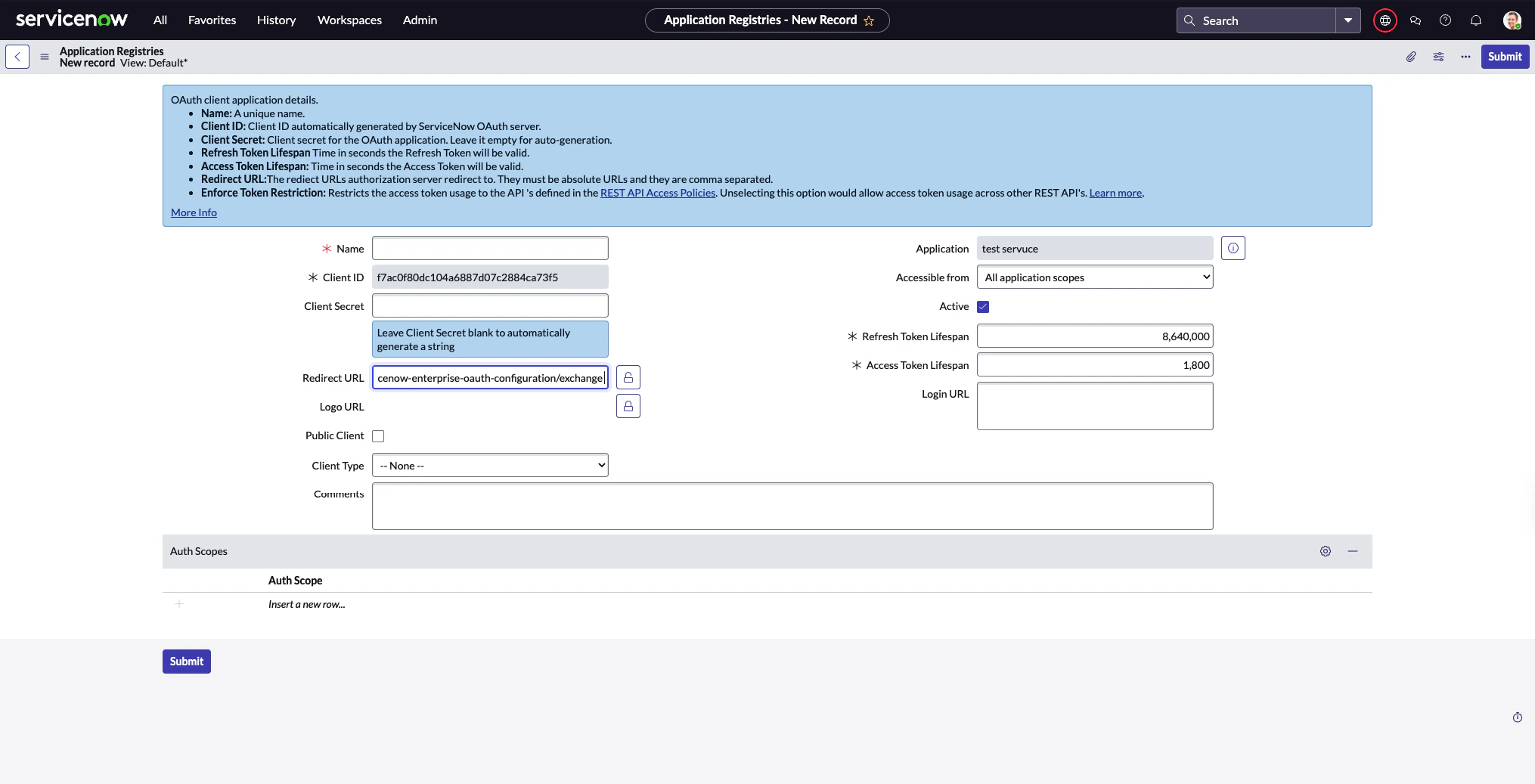
Select Create an OAuth API endpoint for external clients.

-
For the Redirect URLfield, enter this link https://oauth.domo.com/api/data/v1/oauth/providers/servicenow-enterprise-oauth-configuration/exchange.
- Navigate to System OAuth > Application Registry.
2 . Find and select the application you are interested.
Connecting to Your ServiceNow Enterprise OAuth Configuration Account
This section enumerates the options in the Credentials and Details panes on the ServiceNow Enterprise OAuth Configuration Connector page. The components of the other panes on this page, Scheduling, and Name & Describe Your DataSet, are universal across most connector types and are discussed in great detail in Adding a DataSet Using a Connector.Credentials Pane
This pane contains fields for entering credentials to connect to your ServiceNow Enterprise OAuth Configuration account. The following table describes what is needed for each field:| Field | Description |
|---|---|
| OAuth Configuration | OAuth Configurations have service credentials stored by your administrator that automatically log you in, so only your personal OAuth login is required. Your administrator may create and edit configurations in the Data Center, in the Accounts tab. |
| Instance Name | Enter the ServiceNow instance name. For example: https://instance.service-now.com. |
Details Pane
| Menu | Description | ||||||||||||
|---|---|---|---|---|---|---|---|---|---|---|---|---|---|
| Report | Select the ServiceNow Enterprise OAuth Configuration report you want to run. The following reports are available:
| ||||||||||||
| Table |
| ||||||||||||
| Table Name | Enter the name of the table for which you want to retrieve the data for. | ||||||||||||
| Custom Query | Enter a custom query in this field. Include query values directly related to sysparm_query. The fields sysparm_limit and sysparm_offset should not be included. If the field sys_created_on is included the value should be in the following format: yyyy-MM-dd HH:mm:ss. Example query: ORDERBYDESCsys_created_on^sys_created_on>2016-09-25+00:00:00^sys_created_on<2016-09-27+23:59:59 For more information, refer to here. | ||||||||||||
| Fields | Enter a comma separated list of fields to return with this DataSet. Example field list: parent,sys_updated_on,number | ||||||||||||
| Data Format | Select the format which you expect the ServiceNow API to return date fields. If you select String, Domo will not process the date, and return the literal string returned from the ServiceNow API. | ||||||||||||
| Duration | Select the duration for the report (a Single Date, or a Date Range). | ||||||||||||
| Report Date | Select report date using relative or specific dates. Relative indicates the number of days from today or a specific date using the date selector. | ||||||||||||
| Select Specific Date | Select the report date using the date selector. | ||||||||||||
| Days Back | The number of days back that you would like to get data for. Specify either today or 0, yesterday or 1, or today-7 or 7 to get data for 7 days into the past. | ||||||||||||
| Start Date | Select report start date using relative or specific dates. Relative indicates the number of days from today or a specific date using the date selector. | ||||||||||||
| Select Specific Start Date | Select the report start date using the date selector. | ||||||||||||
| Days Back to Start From | The number of days back that you would like to get data from (start day). Specify either today or 0, yesterday or 1, or today-7 or 7 to get data for 7 days into the past. | ||||||||||||
| End Date | Select report end date using relative or specific dates. Relative indicates the number of days from today or a specific date using the date selector. | ||||||||||||
| Select Specific End Date | Select the report end date using the date selector. | ||||||||||||
| Days Back to End At | The number of days back that you would like to get data to (end day). Specify either today or 0, yesterday or 1, or today-7 or 7 to get data for 7 days into the past. | ||||||||||||
| Display Values | When this option is enabled, the connector returns human‑readable display values for reference fields, rather than internal sys_id values. |